VR View
VR View page contains all VR View related options.
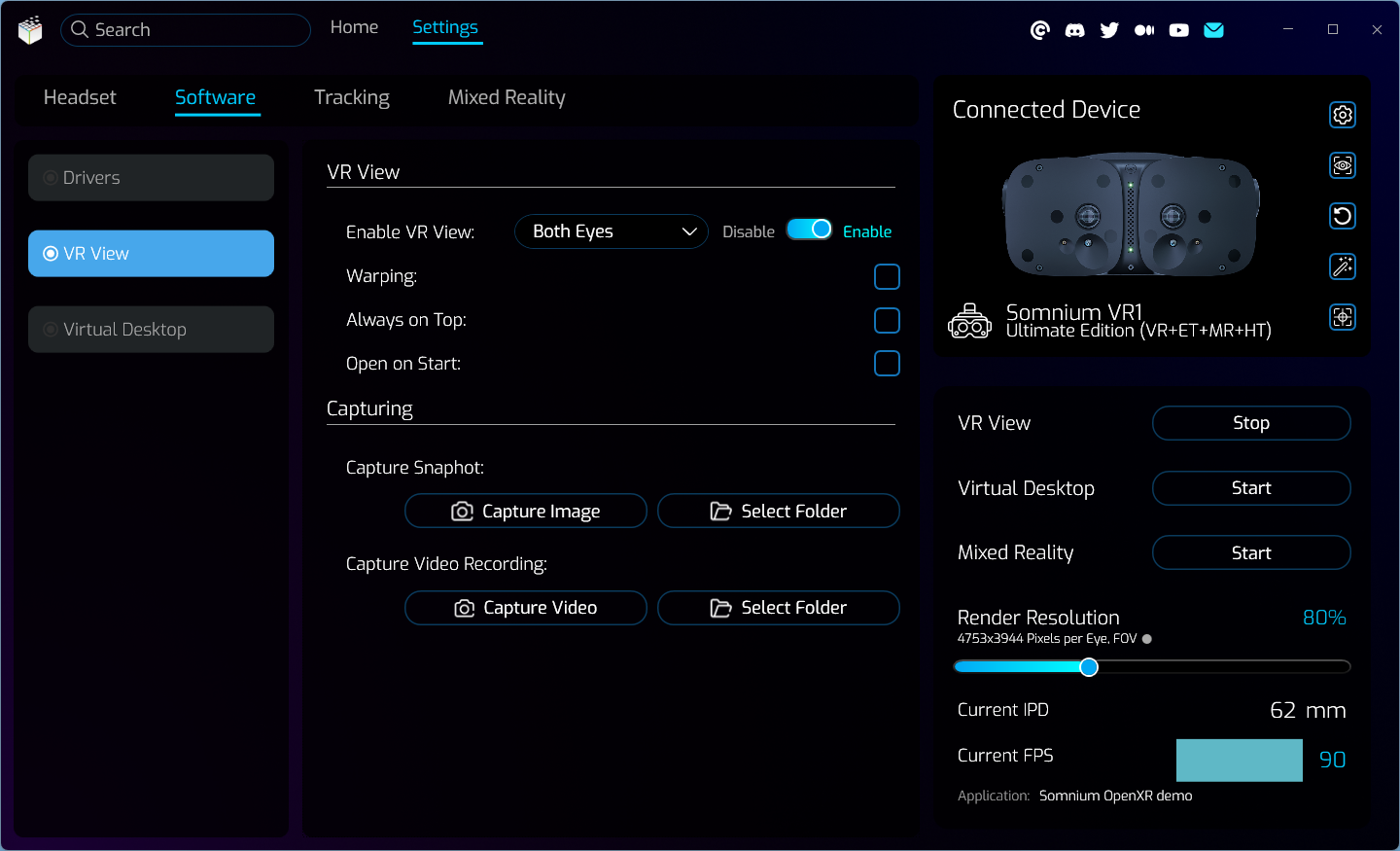
- Enable VR View
- Shows or hides the VR View window, which contains the final rendered image as it is displayed inside the headset.
- You can also select if you want to show picture from Both Eyes at once, or only one (Left Eye or Right Eye).
- This option will not be available if you are using the Somnium SteamVR Driver, so in that case use the VR View option in SteamVR instead.
- Warping
- If this is disabled, the VR View window shows rendered image before the final warping algorithm (compensation for headset optical system) is applied.
- If this is enabled, the VR View window shows rendered image after the final warping algorithm is applied.
- Always on Top
- If this is enabled, the VR View window will be placed in the top window layer, so it will be shown over other windows on the desktop.
- Open on Start
- If this is enabled, the VR View window will open automatically after any Somnium VR1 compatible application is started.
- Capturing
- Capture Snapshot
- Use the Capture button to save the current VR View image to a .png image file.
- Image file will be saved to the folder selected through the Path button (‘C:/ProgramData/somnium/’ by default).
- Capture Video Recording
- Use the Capture button to start or end video capture from the VR View window.
- Exported video file will be saved to the folder selected through the Path button (‘C:/ProgramData/somnium/’ by default).
- Capture Snapshot
This page was last modified on February 2nd, 2026 at 16:49
< PreviousNext >