General
General page contains basic mixed reality options.
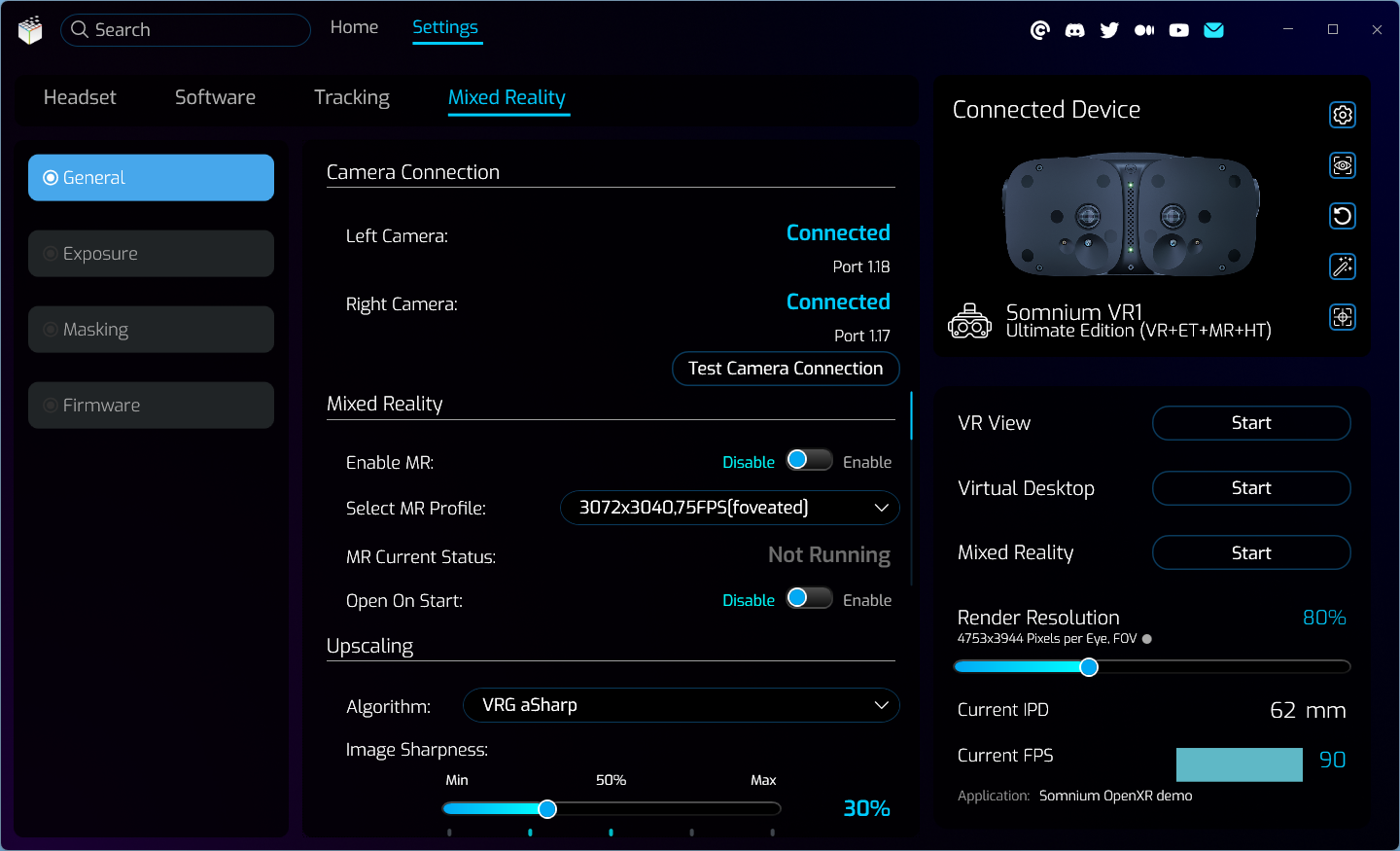
- Camera Connection Status
- Shows info about the connected mixed reality module, separately for left and right camera.
- Clicking the Test Camera Connection button will start a connection test, to check quality of the mixed reality USB connection.
- You should only run the connection test when no VR application is running, as otherwise it could show incorrect results.
- When the test completes a new popup window will show up with the test results.
- If the popup shows “Connection test successful”, then the USB connection is ok and you should be able to run any VR application with the mixed reality functionality.
- If the popup shows “Connection test failed”, then the USB connection is not sufficient for the full mixed reality resolution. In that case try connecting the mixed reality USB cables to different USB 3 ports in your PC, and run the test again.
- If you encounter any issue with the mixed reality connection, please export a full test report by clicking the Yes button in the test results popup, and send that file to our support.
- Mixed Reality
- Enable MR
- Allows enabling or disabling the mixed reality, which shows a real image from the mixed reality cameras inside the headset.
- Be aware that mixed reality can’t be enabled if there is no VR application currently running, so in that case the Enable switch will be disabled.
- Select MR Profile
- Changes the resolution and frequency profile of the mixed reality cameras.
- Only resolutions predefined in the mixed reality firmware are available.
- Mixed reality profile can only be changed when mixed reality is not enabled (i.e. the mixed reality image is not shown).
- MR Current Status
- Shows a status of the mixed reality.
- Open On Start
- If this option is enabled, mixed reality will be automatically enabled after any Somnium compatible application is started.
- Enable MR
- Upscaling
- Algorithm
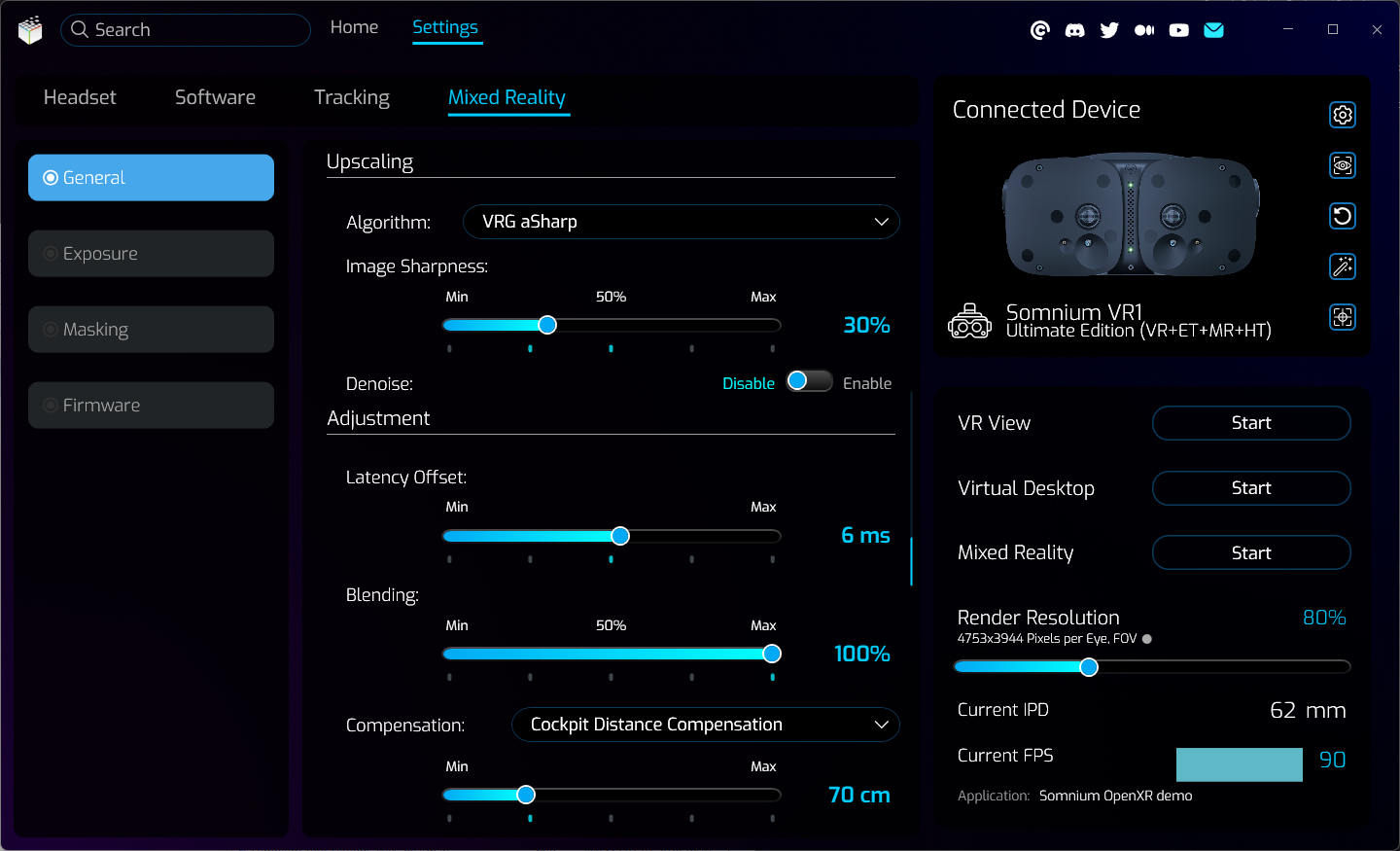
- Can be used to enable image upscaling for mixed reality image.
- You can select either ‘AMD FidelityFX Super Resolution’, ‘NVIDIA Image Scaling’, or ‘VRG aSharp’ algorithm.
- Image Sharpness
- Sharpness slider controls the strength of the sharpening pass.
- Denoise
- Allows enabling or disabling the denoise algorithm for mixed reality, which can partially compensate for noise in the mixed reality image.
- Algorithm
- Adjustment
- Latency Offset
- Use this slider to adjust additional preprocessing for camera images to compensate for the camera latency.
- Blending
- Use this slider to change how the edges of the camera images are blended into their virtual surroundings.
- Compensation
- The MR compensation options are specifically useful when you are using the Somnium headset with a physical cockpit and the mesh masking option, but some can also be utilized for other masking options.
- Selecting the best compensation option will depend on the physical environment/cockpit setup and the available 3D mesh:
- If the small drift movement of MR image is not an issue, leave this option Disabled.
- If the used 3D mesh corresponds exactly to the physical environment/cockpit, use Reprojection option.
- If the used 3D mesh is simplified (or you are using other masking options), and most of the physical environment is at a specific distance, use Cockpit Distance Compensation option.
- If the used 3D mesh is simplified (or you are using other masking options), and the physical environment is at varied distances, use Virtual Camera Compensation option.
- Selecting the best compensation option will depend on the physical environment/cockpit setup and the available 3D mesh:
- Reprojection
- Maps the MR image onto the used 3D mesh, this requires having the 3D mesh as close as possible to the physical cockpit as otherwise some artifacts will be visible.
- Cockpit Distance Compensation
- Adjusts the distance of displayed stereoscopic MR image to more precisely fit on the specified distance (by default 70cm).
- This works well with physical cockpit placed at the specified distance from the users’ head, stabilizing the MR image better, but physical objects in other distances will have incorrect size/placement.
- Virtual Camera Compensation
- Adjusts the position of virtual image to correspond to the position of the MR cameras (when the slider is set to 100%).
- This can help with stabilizing the MR image, but on the other hand it will slightly destabilize the VR image.
- The MR compensation options are specifically useful when you are using the Somnium headset with a physical cockpit and the mesh masking option, but some can also be utilized for other masking options.
- Latency Offset
- Foveated Transport
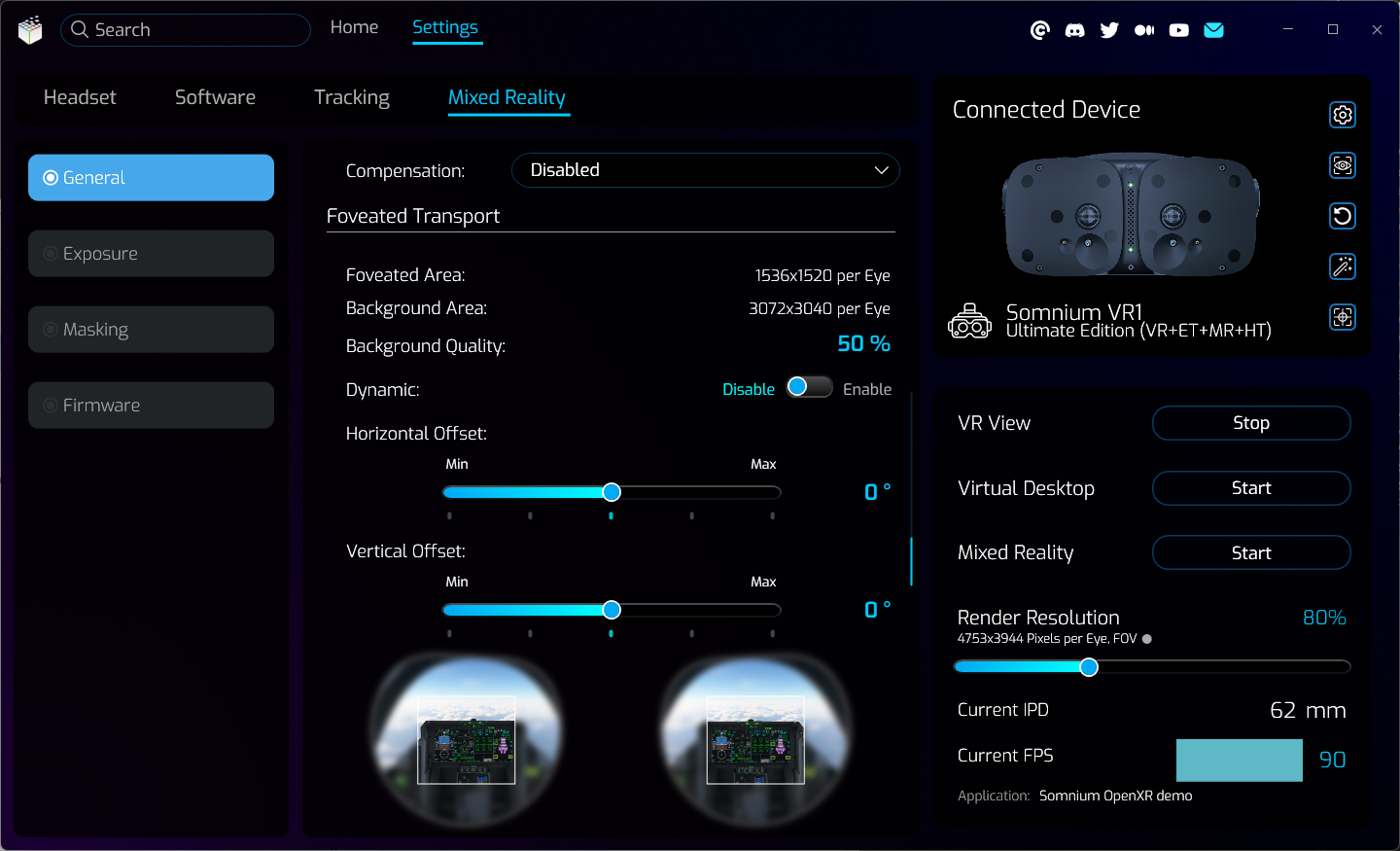
- This section contains additional settings for foveated MR profiles.
- Foveated Area
- Shows the exact size (in pixels per eye) of the mixed reality foveated area.
- For most foveated profiles this will be either half or third of the background area.
- Background Area
- Shows the size (in pixels per eye) of the mixed reality background area, before downscaling.
- This is the same value shown in the specific MR profile name.
- Background Quality
- Shows the quality of the mixed reality background area when compared to the full resolution (downscaling).
- Dynamic
- When this option is enabled, the position of mixed reality foveated area will move dynamically according to eye tracking results.
- This also requires calibrating the eye tracking – either with a physical button on top of the headset, Eye Tracking Calibration button in the Quick Settings section, or on the Settings – Headset – Eyes page.
- Horizontal Offset
- Can be used to manually move the mixed reality foveated area in horizontal direction.
- This option is only available when Dynamic is disabled.
- Vertical Offset
- Can be used to manually move the mixed reality foveated area in vertical direction.
- This option is only available when Dynamic is disabled.
This page was last modified on April 2nd, 2026 at 13:27
< PreviousNext >