Screen
Screen page contains display related options and software image adjustments.
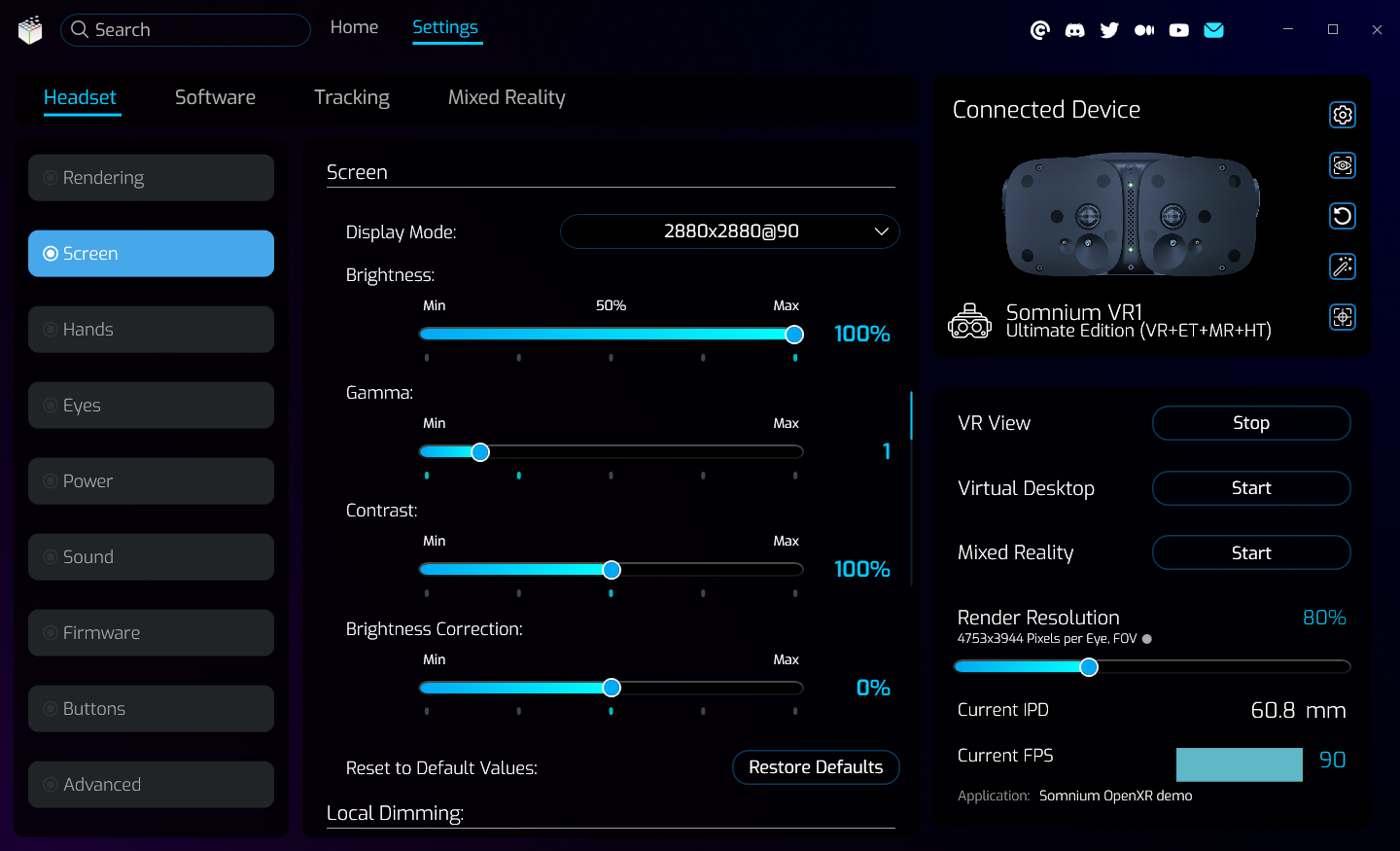
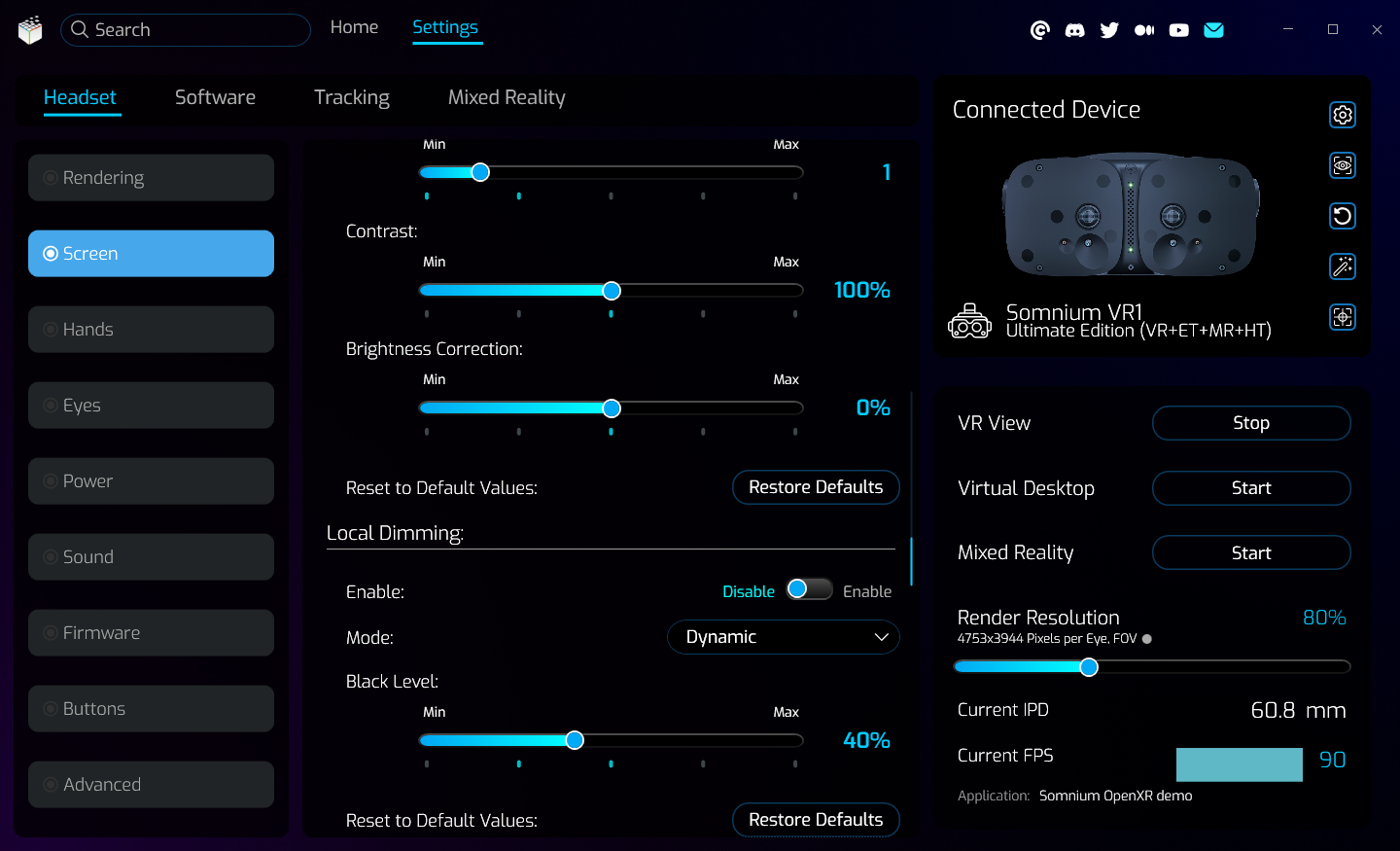
- Display Mode
- Changes the hardware resolution and frequency of the displays inside the headset (be aware that this requires headset restart).
- Only resolutions predefined in the headset firmware are available.
- This does not influence the software resolution set in the Quick Settings section or on the Settings – Headset – Rendering page.
- Brightness
- Directly changes the brightness of the displays inside the headset.
- Gamma
- Can be used to adjust the gamma value of the image displayed inside the headset.
- This adjustment is applied independently on the end VR application, and only after the final image is rendered.
- This functionality will not be available if you are using the Somnium SteamVR Driver
- Contrast
- Can be used to adjust the contrast value of the image displayed inside the headset.
- This adjustment is applied independently on the end VR application, and only after the final image is rendered.
- This functionality will not be available if you are using the Somnium SteamVR Driver
- Brightness Correction
- Can be used to adjust the brightness value of the image displayed inside the headset.
- This adjustment is applied independently on the end VR application, and only after the final image is rendered.
- This does not influence the hardware brightness of the displays set with the Brightness slider above.
- This functionality will not be available if you are using the Somnium SteamVR Driver
- Reset to Default Values
- Allows resetting Gamma, Contrast, and Brightness Correction to their default values.
- Local Dimming
- Can be used to enable/disable local dimming functionality.
- Several local dimming modes can be selected based on user preference or specific application.
- Linear mode uses a basic averaging algorithm which behaves the same for darker or lighter areas.
- Dynamic mode is designed to achieve the best contrast between darker and lighter areas.
- Natural mode uses a custom averaging algorithm to more closely resemble how human eyes adjust to light changes, but it may cause more artifacts.
- Medium mode uses a linear averaging for the darker areas and more natural averaging for the lighter areas.
- Minimum black level can be adjusted – lower values will mean darker blacks, but more artifacts may occur in areas with high contrast.
This page was last modified on July 8th, 2026 at 12:37
< PreviousNext >