Tracking
Tracking page contains all tracking related options.
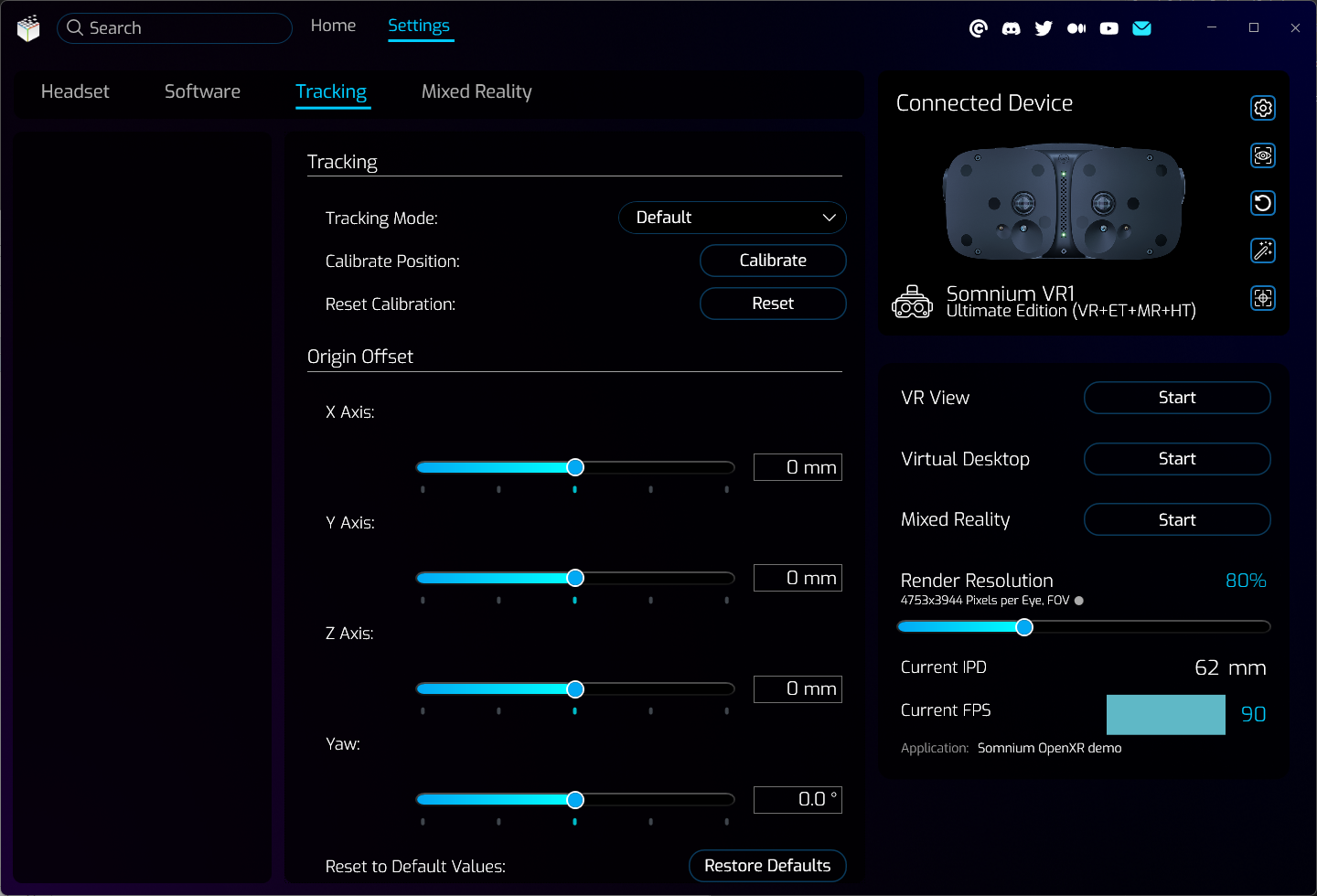
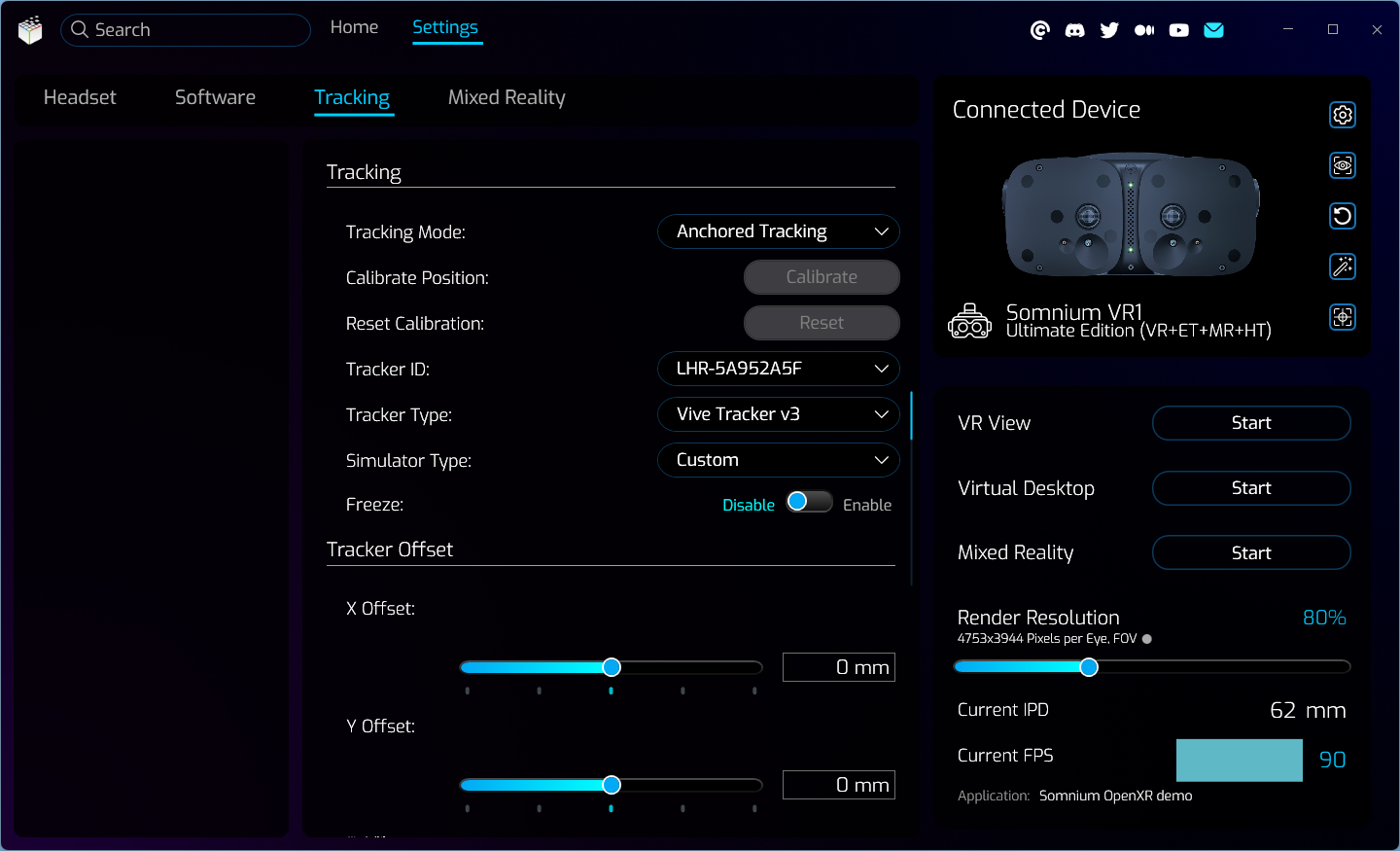
- Tracking Mode
- Can be used to switch between tracking modes.
- Default
- While this option is selected, all tracking information is controlled directly by the current position of the headset (relative to calibrated origin).
- Motion Cancellation
- If you’ll be using Somnium VR1 headset on a motion platform, you can utilize secondary SteamVR/Lighthouse tracker for direct platform movement cancellation/compensation.
- Anchored Tracking
- Anchored tracking can be used to fully anchor the tracking origin to a specific SteamVR/Lighthouse tracker. This is most often used with mixed reality scenarios to easily fit physical objects with the mixed reality mask and with the virtual scene.
- Default
- Can be used to switch between tracking modes.
- Calibrate Position
- Clicking the Calibrate button will save the current headset position as origin (0,0,0) for your VR space.
- When using a room scale application with 0 floor level, we recommend placing the headset on the ground and then pressing this button.
- The position calibration will not work if you are using the SteamVR Driver, as in that case the VR space is configured through SteamVR itself.
- This button is only available when Default mode or Motion Cancellation mode is selected.
- Reset Calibration
- Clicking the Reset button will remove previously saved calibration, so raw data from the tracking system will be used.
- This button is only available when Default mode or Motion Cancellation mode is selected.
- Origin Offset
- Can be used to manually move the tracking origin (X, Y, Z, Yaw) to fine tune the calibrated position.
- Clicking the Restore Defaults button will reset all Origin sliders to default values (0).
- These offsets are only available when Default mode or Motion Cancellation mode is selected.
- Tracker ID
- Can be used to select tracker ID from a list of all available SteamVR trackers.
- This option is only available when Motion Cancellation mode or Anchored Tracking mode is selected.
- Anchored Tracking options
- These options are only available when Anchored Tracking mode is selected.
- Tracker Type
- Can be used to select specific tracker type (some tracker types may use different axis system or processing, so this should always be selected according to the used tracker).
- Simulator Type
- Can be used to select predefined offset configuration for specific Vrgineers simulators.
- Custom option allows manually configuring the offset with sliders below.
- Freeze
- When this option is enabled it stops dynamic update of the anchor position according to position of the tracker (last position before Freeze was enabled will be used).
- Tracker Offset
- Can be used to manually move the anchor position (X, Y, Z, Pitch, Roll, Yaw) relative to the current position of the selected tracker.
- Clicking the Restore Defaults button will reset all Offset sliders to default values.
This page was last modified on February 2nd, 2026 at 17:13
< PreviousNext >